Keywords filtering for SEO: Filter keywords that aren't profitable
Optimize your website for profitable keywords! Eliminate low-traffic and high-difficulty terms that you don't want to target.
1. How to filter keywords in KWFinder
We developed the filter to help you find not only the most profitable keywords, but also the ones you can realistically rank for.
Just click the “Filter” button right above the keywords table.
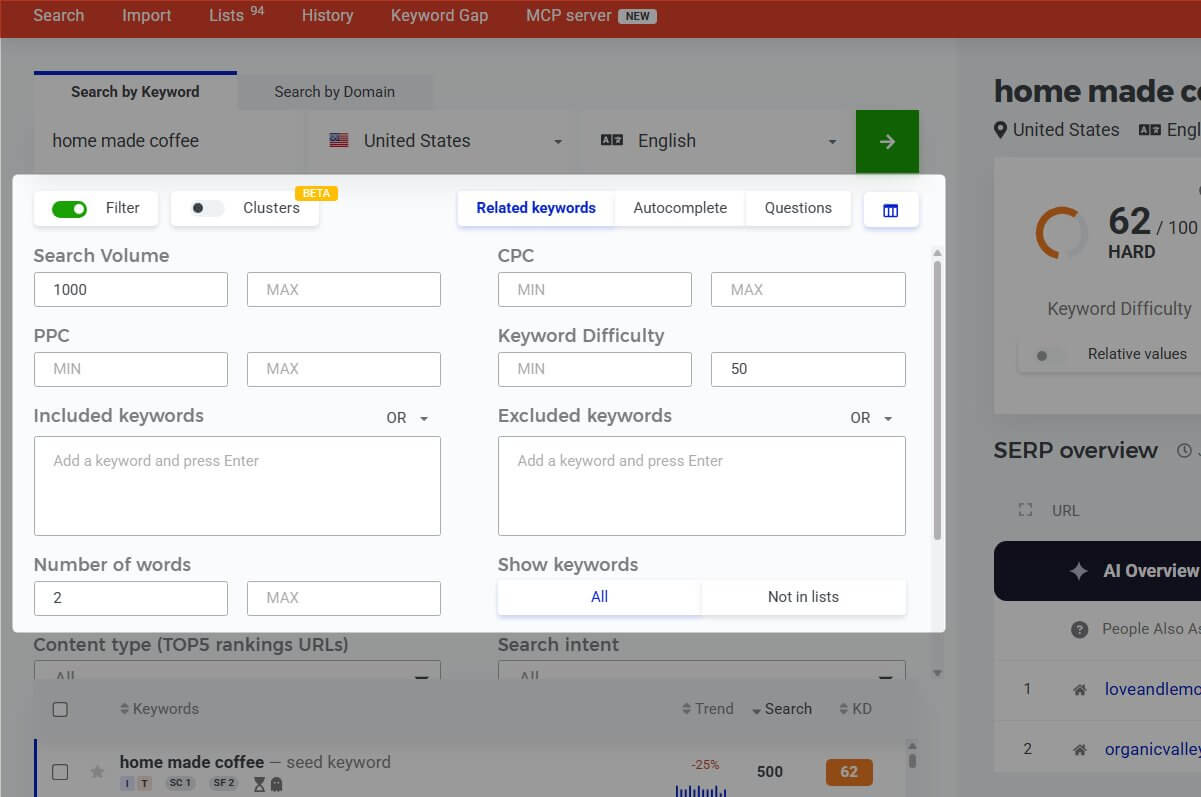
Filter options
- Search volume (min/max)
- CPC (min/max)
- PPC (min/max)
- Included and excluded keywords (AND/OR logic)
- Number of words (min/max)
- Show keywords (All / Not in lists)
- Content type (top 5 ranking URLs)
- Keyword opportunities
- Search intent
- SERP features
Eliminate low-traffic keywords by setting a minimum search volume and a maximum keyword difficulty your website can compete with.
You can set the number of words per phrase when searching specifically for long-tail keywords, or choose a combination that suits your strategy best.
Tip
Don’t forget to inspect the SERP for your filtered keywords. Strong competitors in top positions shouldn't immediately discourage you, you can still optimize for those terms and climb the rankings over time.
Example
Let’s say you are looking for mid-length or long-tail keywords with a minimum search volume of 1,000 and a maximum keyword difficulty of 50.
Enter these parameters into the filter form and set your desired minimum number of words. Hit “Set filter” to update your results instantly.
If you want to include or exclude specific terms, type them into the text fields and select “AND” or “OR” logic to refine your results.
2. Create content with valuable keywords
Sorting your results by your primary target metric, usually Keyword Difficulty or Search Volume, is always a smart first step.
Even if you discover dozens of potential keywords, your content shouldn't be crammed with all of them.
Choose one primary target keyword along with its semantically related variations. Then, optimize your page element by element: headings, body paragraphs, images, title tags, and meta descriptions.
You don't need to exact-match stress every phrase. Modern search engines understand synonyms and intent. As long as your page provides comprehensive value, you will naturally capture organic traffic for related long-tail queries.
3. Don’t get distracted by keywords you’ve already saved
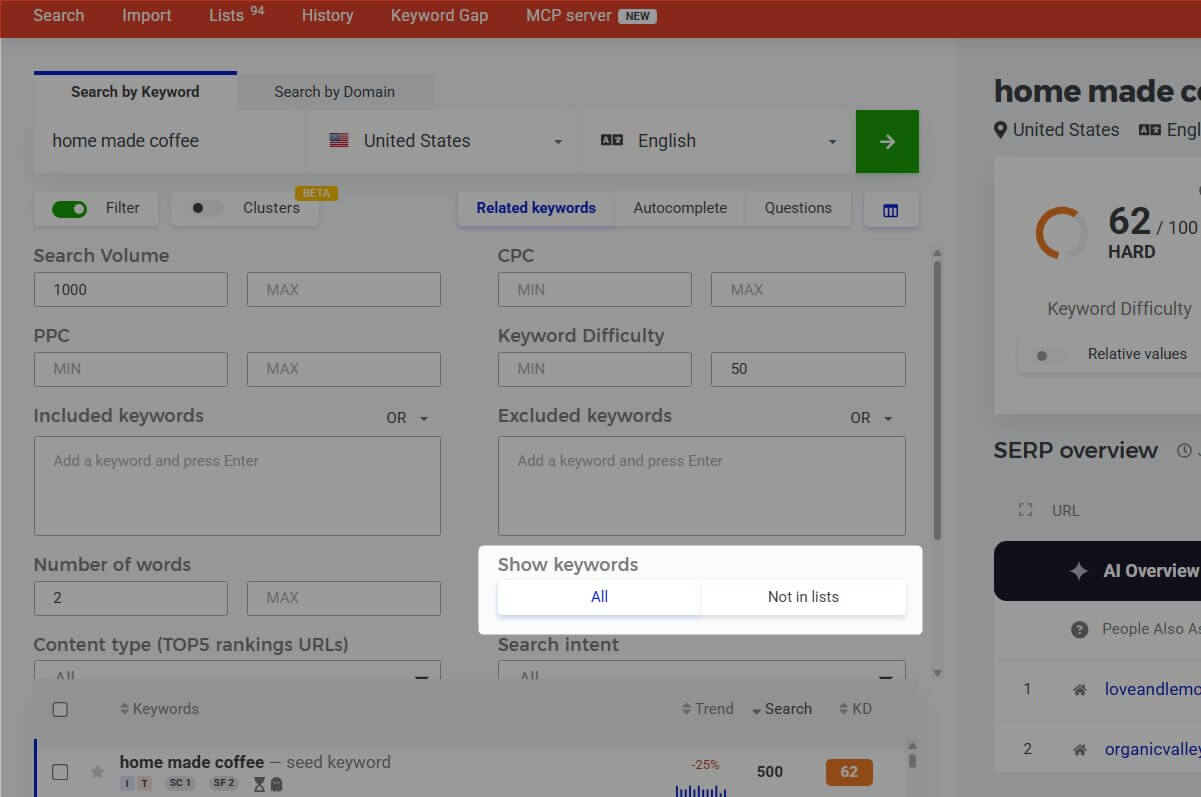
Avoid reviewing duplicate terms by setting your filter to show only keywords that aren't in your existing lists.
Simply select the “Not in lists” option under the “Show keywords” setting.
Filtering out saved terms keeps your workspace clean so you can focus on optimizing content rather than sifting through raw data.
4. Smart keyword filtering
KWFinder automatically filters out results that don't match your parameters. If you check an uncalculated keyword and its newly fetched difficulty score violates your active filter rules, the keyword will immediately vanish from your view.
This happens automatically as long as the filter remains active. You can toggle your filters on or off at any time.
Find and filter relevant keywords
Use KWFinder to analyze the most important keywords and filter out those that do not matter for your SEO strategy.
Explore all features of KWFinder
- Find hidden long tail keywords
- Find your competitor’s keywords
- Google Suggest keyword source
- Organize keywords with keyword lists
- Import keywords in bulk
- Filter keywords that aren't profitable