
Hey there! 👋
Every Monday, someone on an SEO team opens the rank tracker, copies a few numbers into Slack and writes “rankings look stable”. It takes 20 minutes, and nobody has ever enjoyed it.
That’s exactly the kind of job you can hand over to n8n. Mangools now connects to n8n, and we’ve prepared three workflows you can import with a single URL: keyword research on demand, a weekly rank report for Slack or email, and an AI SEO assistant that answers questions with your own Mangools data.
Here’s how to connect the two, what each workflow does, what it costs in lookups and how to build your own SEO automations on top of them.
Here’s what’s inside:
- Why automate SEO tasks with n8n?
- Two ways to connect n8n to Mangools
- What you need before you start
- Step 1: Connect n8n to the Mangools MCP server
- How to import a ready-made workflow
- Workflow 1: Keyword research on demand (KWFinder)
- Workflow 2: A weekly rank report in Slack (SERPWatcher)
- Workflow 3: An AI SEO assistant in n8n chat
- Build your own SEO automations
- Prefer a native node? Try n8n-nodes-mangools
- How lookups and rate limits work
- Troubleshooting
- Frequently asked questions
TL;DR
- n8n connects to Mangools in two ways: through our hosted MCP server (built-in n8n nodes, works on n8n Cloud and self-hosted) or through the n8n-nodes-mangools community node (self-hosted n8n).
- Three ready-made workflows import by URL: keyword research with KWFinder, a weekly SERPWatcher rank report and an AI SEO assistant.
- The weekly rank report only reads SERPWatcher data, so it doesn’t spend any lookups.
- A free Mangools account is enough to try it all. Free accounts also get a one-time API & MCP welcome bonus of 100 keyword and 100 SERP lookups.
Why automate SEO tasks with n8n?
A big part of SEO work is the same routine every week. Pull keyword ideas for a new topic. Check which tracked keywords moved. Paste the numbers into a sheet, a Slack channel or a client report. The thinking starts after that, and the collecting part doesn’t really need you.
n8n is a workflow automation tool where you build that routine once from nodes: a trigger (a schedule, a form, a chat message), a few steps that fetch and reshape data, and an action at the end, such as a Slack message, a new row in Google Sheets or a Notion page. You can use it in the cloud or host it on your own server.
n8n has nodes for hundreds of apps, so once it can reach Mangools, the data from KWFinder, SERPChecker, SERPWatcher, LinkMiner, SiteProfiler and AI Search Watcher can end up wherever your team already works.
Two ways to connect n8n to Mangools
You can reach Mangools from n8n through our MCP server or through a native community node. Here’s how they compare:
| Mangools MCP server | n8n-nodes-mangools community node | |
|---|---|---|
| What it is | Our hosted server at https://mcp.mangools.com/mcp, used through n8n’s built-in MCP Client and MCP Client Tool nodes | A native Mangools node that calls the Mangools API directly |
| n8n Cloud | Yes | No, self-hosted n8n only |
| Sign-in | OAuth or API key | API key |
| Tools | Every Mangools tool, including ones that create and delete data (you choose which ones to allow) | 25 read-only operations |
| Works with AI agents | Yes | Yes, on self-hosted n8n |
| Request pace | Up to 3 requests per second | 3 requests per 30 seconds per quota pool |
The three ready-made workflows use the MCP server, so we’ll start there. The community node gets its own section further down.
What you need before you start
- A Mangools account: A free one is enough to try all three workflows. It can track 5 keywords in SERPWatcher, and the one-time API & MCP welcome bonus covers the KWFinder and SERPChecker lookups.
- Your API key from mangools.com/api-token, unless you sign in with OAuth.
- n8n, in the cloud or self-hosted. Use a recent version, since older versions may not have all the nodes the workflows need.
Step 1: Connect n8n to the Mangools MCP server
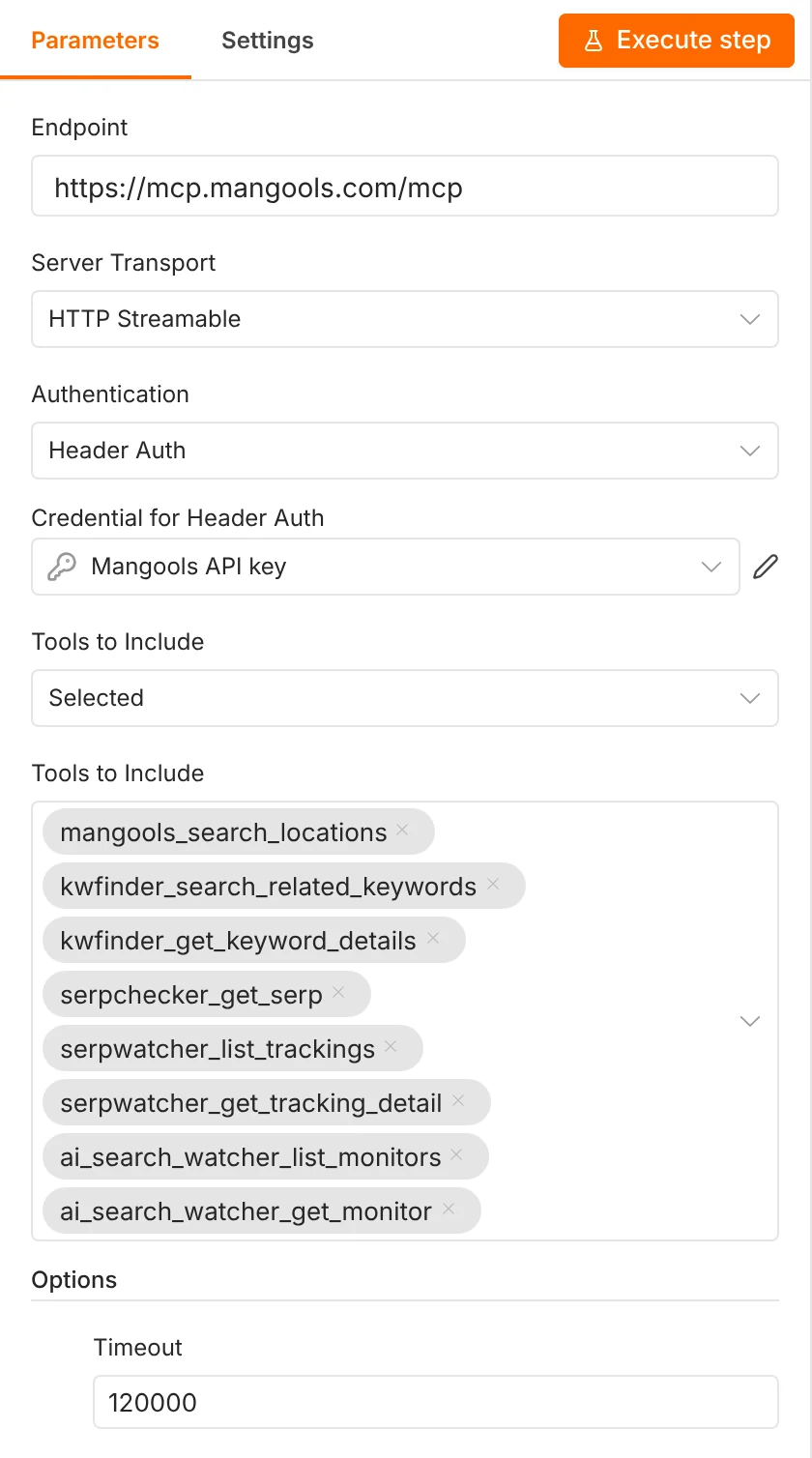
Add an MCP Client node (for a normal workflow step) or an MCP Client Tool node (for an AI agent) and fill in three fields:
- Endpoint:
https://mcp.mangools.com/mcp(the MCP Client node calls this field MCP Endpoint URL) - Server Transport: HTTP Streamable
- Authentication: MCP OAuth2 or Header Auth
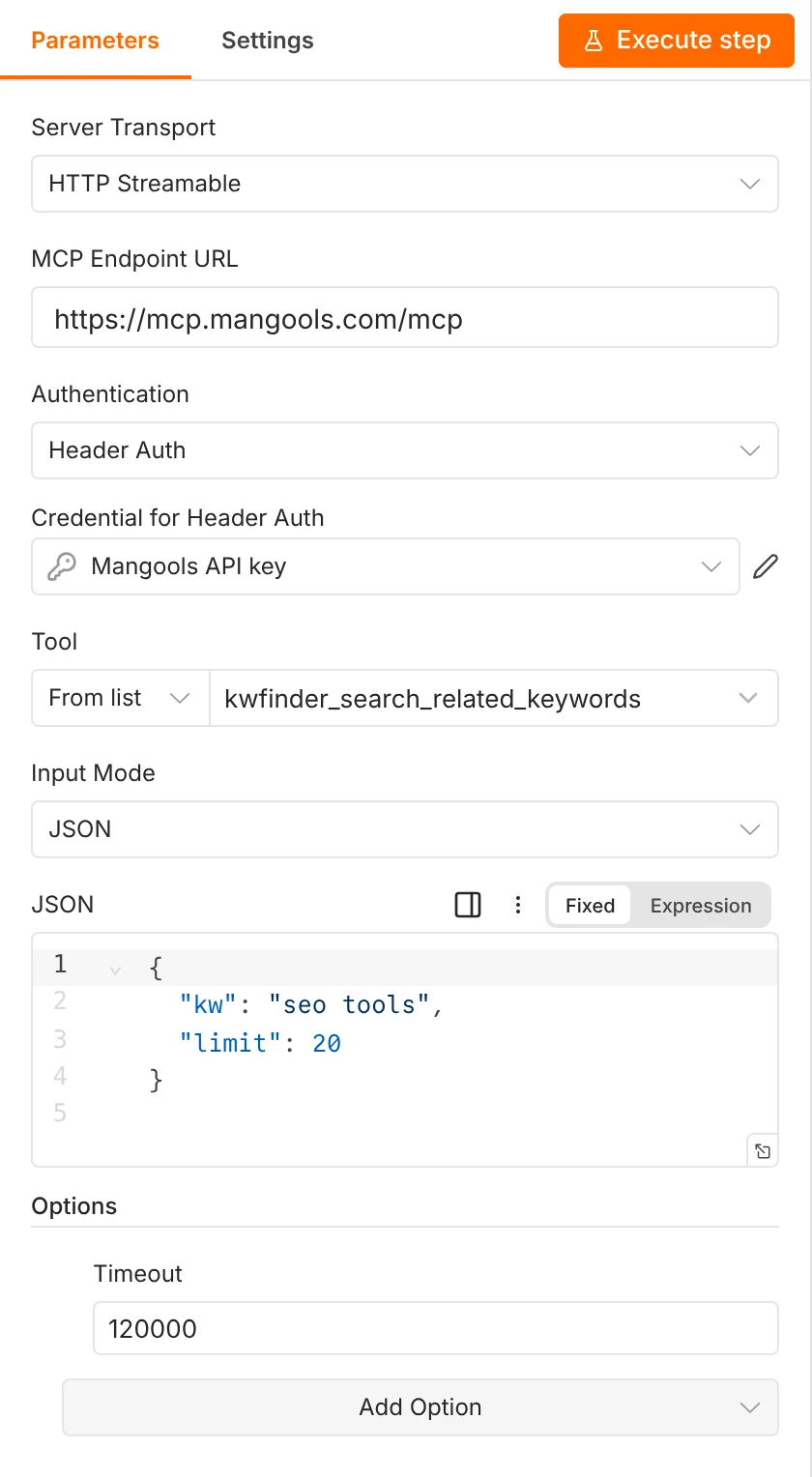
Then pick one of the two sign-in options.
Option A: Sign in with OAuth
OAuth connects n8n to your Mangools account without copying any key.
- Set Authentication to MCP OAuth2 and create a new credential of type MCP OAuth2 API.
- Set Server URL to
https://mcp.mangools.com/mcp. n8n finds the Mangools sign-in from that address. - Leave Use Dynamic Client Registration on.
- Click Connect, sign in to Mangools in the window that opens and approve the access.
N8N_EDITOR_BASE_URL environment variable to the public https address of your instance. n8n builds the return address for the sign-in from it, and Mangools accepts plain http only on localhost. Without it, the Mangools sign-in finishes but never returns to n8n.Option B: Use your API key
- Set Authentication to Header Auth.
- Under Credential for Header Auth, create a new credential with the name
x-access-tokenand your Mangools API key as the value. - Save the credential as Mangools API key. The ready-made workflows look for a credential with exactly this name and select it for you.
How to import a ready-made workflow
All three workflows import the same way:
- In n8n, open a new workflow.
- Click the “…” menu next to the workflow name and choose Import, then From URL.
- Paste the workflow’s address (you’ll find it under each workflow below).
- Open every MCP node and check that your credential is selected. If you connected with OAuth, switch Authentication to MCP OAuth2 on each of them.
Workflow 1: Keyword research on demand (KWFinder)
Import from: https://apidocs.mangools.com/n8n/mangools-keyword-research.json
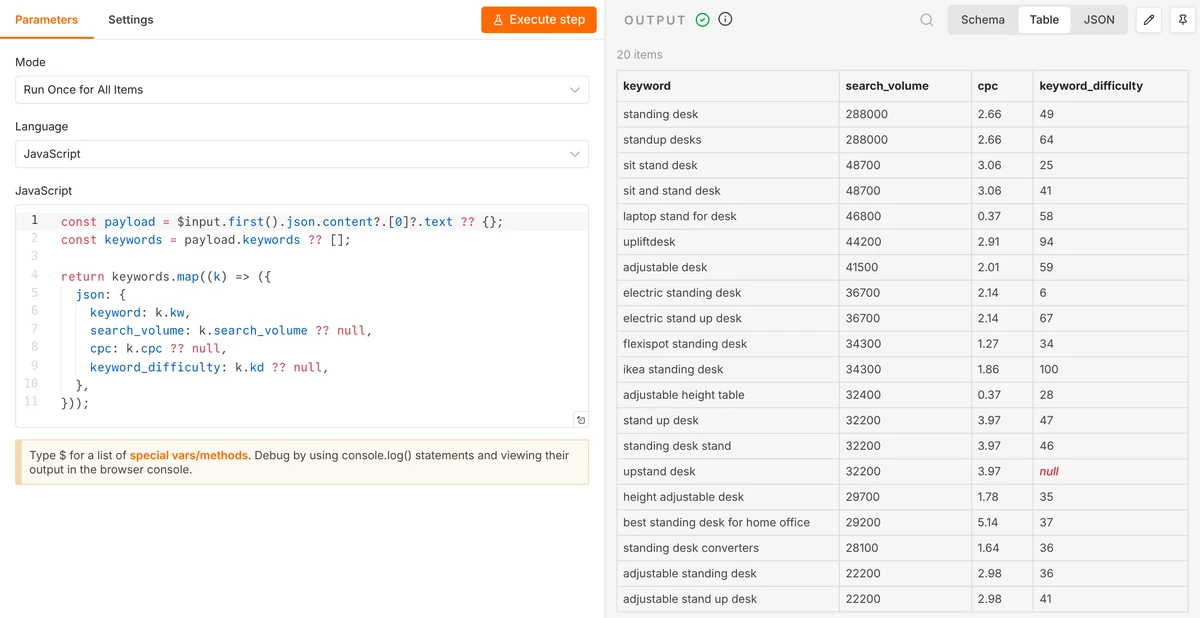
You can give the workflow a seed keyword and it will ask KWFinder for related keywords. It returns the 20 keywords with the highest search volume, one n8n item per keyword, each with search volume, CPC and keyword difficulty (where KWFinder already has a KD value for it).
To change the seed keyword, open the Find related keywords node and edit its JSON input:
{
  "kw": "standing desk",
  "limit": 20
}
Since every keyword arrives as its own item, you can connect any node after it. Add the keywords to a Google Sheet, create a task for each one in your content team’s board, or pass them to a second Mangools call that checks the SERP for each keyword.
One run is one KWFinder request – it takes 1 lookup from the welcome bonus, or 2 keyword lookups on a standard Mangools plan, because API and MCP lookups count double there (more on that below).
"location_id" to the JSON input. The location search tool (mangools_search_locations) gives you the ID for free, for example 2840 for the United States. And don’t lower the node’s timeout: a keyword that KWFinder hasn’t seen before can take close to a minute, which is why the workflow is set to 120,000 ms.Workflow 2: A weekly rank report in Slack (SERPWatcher)
Import from: https://apidocs.mangools.com/n8n/mangools-weekly-rank-report.json
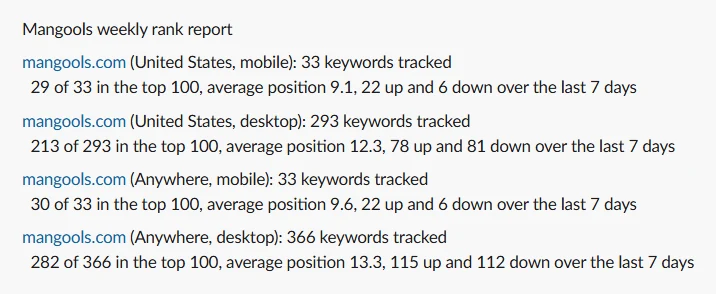
By default, every Monday at 08:00, this workflow goes through all your SERPWatcher trackings and writes a short plain-text summary of the last 7 complete days for each of them: how many keywords rank in the top 100, their average position and how many moved up or down.
The message looks like this (the numbers are just an example):
Mangools weekly rank report

yourdomain.com (United States, desktop): 48 keywords tracked
  41 of 48 in the top 100, average position 17.6, 12 up and 7 down over the last 7 days
Reading SERPWatcher data doesn’t spend any lookups, so this report costs you nothing to run, week after week.
All it needs is at least one tracking in SERPWatcher (without one, the report just tells you to add it). If you haven’t set one up yet, our SERPWatcher guide walks you through it.
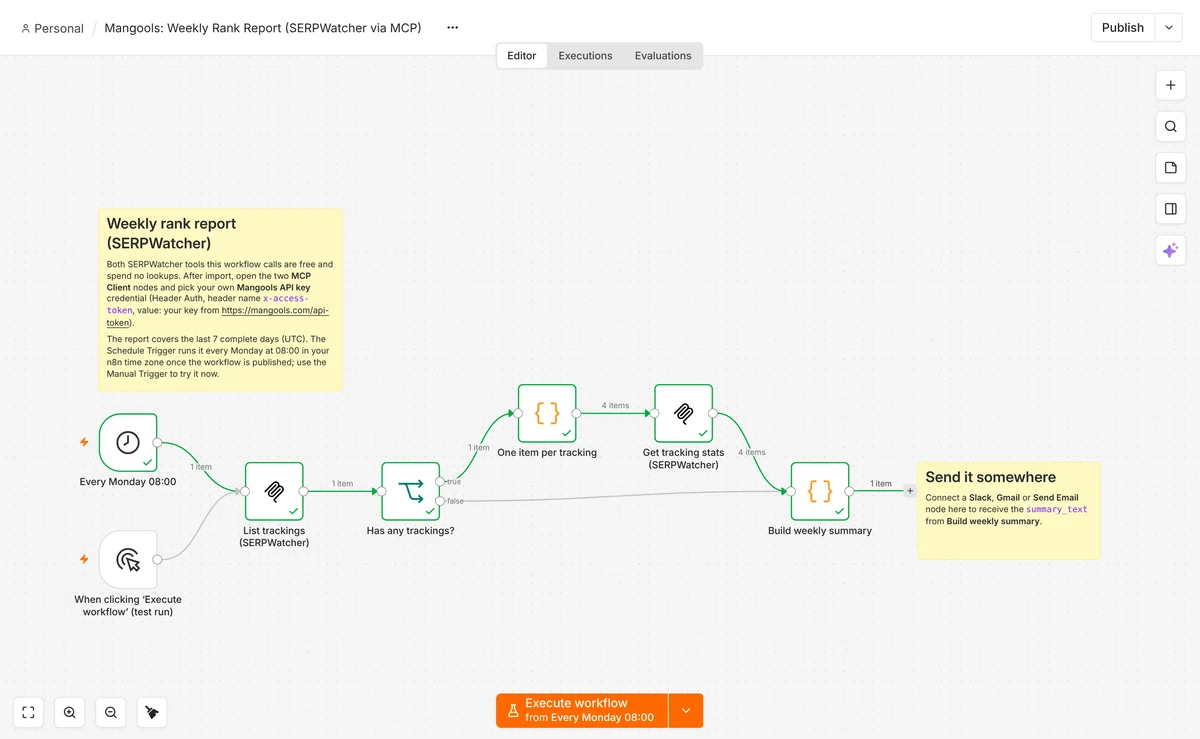
After the import, finish the setup like this:
- Pick your credential on both MCP Client nodes (List trackings and Get tracking stats).
- Connect a Slack, Gmail or Send Email node to the last step, Build weekly summary, and use its
summary_textfield as the message. - Run it once with the manual trigger and check the output.
- Click Publish – a scheduled workflow only runs after it’s published.
Workflow 3: An AI SEO assistant in n8n chat
Import from: https://apidocs.mangools.com/n8n/mangools-ai-agent.json
The third workflow is a chat agent with eight read-only Mangools tools: location search, KWFinder related keywords and keyword details, SERPChecker SERPs, SERPWatcher trackings and tracking detail, and AI Search Watcher monitors and monitor detail.
You ask a question in plain language, the agent picks the right tool, calls it and answers.
A few questions to start with:
- Which of my tracked keywords dropped the most this week?
- Find related keywords for “standing desk” in the United Kingdom and show me the ones with KD under 30.
- Who ranks in the top 10 for “trail running shoes” in the United States?
- What do my AI Search Watcher monitors say about my brand?
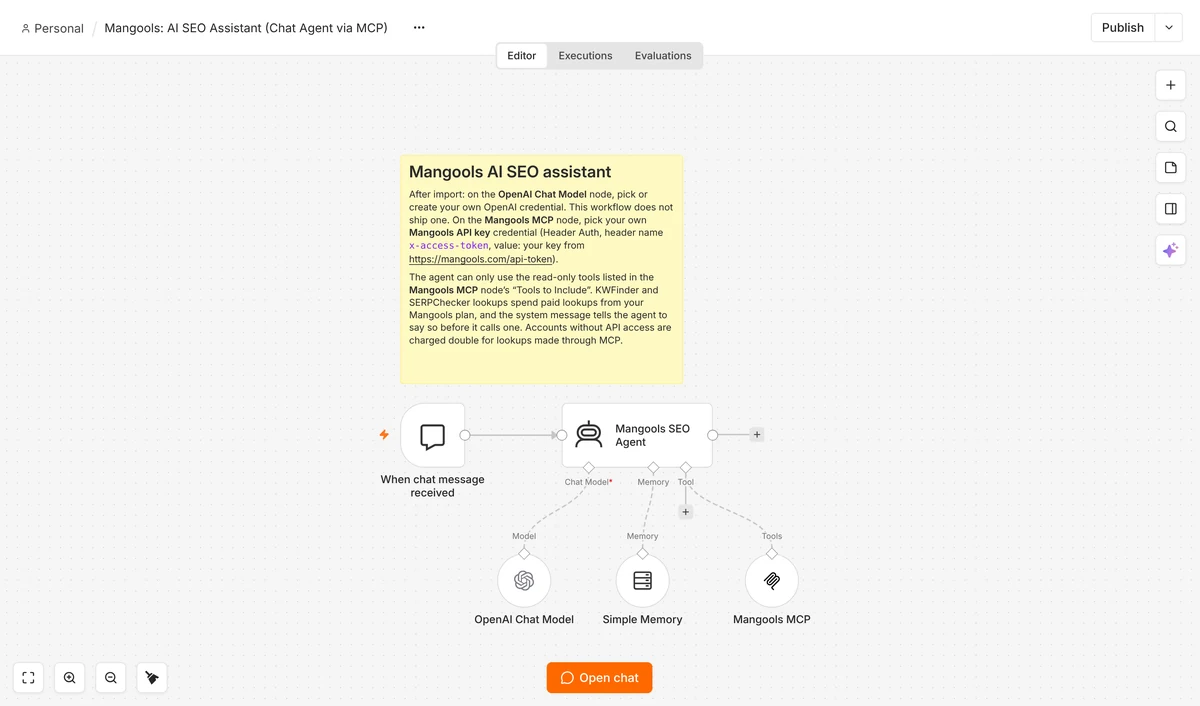
The workflow ships with an OpenAI chat model node (set to gpt-5-mini), so you only add your own OpenAI credential.
The Mangools tools work with any chat model, though, so you can swap it for Anthropic or a local model in Ollama.
The agent’s instructions tell it that KWFinder and SERPChecker calls spend lookups. It says so before it makes one and reuses the data it already has in the conversation.
That makes it great for exploring and quick questions. If you need hundreds of keywords at once, a scheduled workflow like the first one is cheaper and more predictable.
Build your own SEO automations
Once your Mangools credential exists, a new workflow takes a few minutes. There are two basic building blocks:
- A scheduled step without AI: A Schedule Trigger and an MCP Client node – pick one tool in the node’s Tool field (for example
serpwatcher_list_trackings) and pass the result to the next node. No chat model, no tokens. - An agent with the tools you choose: A Chat Trigger, an AI Agent, a chat model and an MCP Client Tool node connected to the agent’s Tool input.
Important: On the MCP Client Tool node, set Tools to Include to Selected and pick read-only tools. The full Mangools tool set can also create, update and delete trackings, monitors, keyword lists, tags and reports, and an agent with access to those tools can use them on its own.
Need some inspiration? Here are four workflows you can build from the same pieces:
| Workflow idea | Trigger | Mangools tool | Where the result goes |
|---|---|---|---|
| Keyword ideas for every content request | Form Trigger (a writer enters a topic) | kwfinder_search_related_keywords | One Google Sheets row per keyword |
| Rank drop alert | Schedule, the day after your trackings update | serpwatcher_get_tracking_stats + an IF node | Slack message for keywords that dropped 5+ positions |
| Monthly AI visibility digest for a client | Schedule, 1st day of the month | ai_search_watcher_list_monitors + ai_search_watcher_get_monitor | |
| SERP check before a launch | Manual trigger | serpchecker_get_serp | Notion page |
rank_change is the new rank minus the old one, so a positive number means the keyword dropped. Two more settings come in handy: tools shorten large results by default, so set "full": true in a tool’s input to get the raw data, and use "limit" to change how many items a list returns (for example, the default is 50 trackings).Prefer a native node? Try n8n-nodes-mangools
If you’d rather skip MCP completely, install our community node. It adds a Mangools node with 25 read operations: 22 across KWFinder, SERPChecker, SERPWatcher, LinkMiner, SiteProfiler and AI Search Watcher, plus your account limits and two location operations (Search and Get). It calls the Mangools API directly with your API key.
- Installation: go to Settings → Community Nodes → Install and enter
n8n-nodes-mangools. This works on self-hosted n8n. n8n Cloud only offers community nodes that n8n has verified, so on Cloud stick with the MCP nodes above. - Credential: create a Mangools API credential, paste your API key and click Test. The test calls an endpoint that doesn’t spend any lookups.
- Location IDs: KWFinder and SERPChecker operations need a numeric Location ID, not a country name. Run Location → Search first (for example with
New York), check the label and use the_idfrom the result. - One item per record: list operations like Get Related Keywords, Get Competitor Keywords or Get Many Backlinks return one n8n item per row, so you can filter and sort right away, without a Split Out node.
- AI agent tool: the node works as a tool for an AI Agent. On self-hosted n8n, start n8n with
N8N_COMMUNITY_PACKAGES_ALLOW_TOOL_USAGE=truefirst. - Read-only on purpose: the node never creates, edits or deletes anything in your Mangools account.
You’ll find the full list of operations and the source code on GitHub.
How lookups and rate limits work
Here’s what each kind of request costs:
| What the workflow does | What it costs |
|---|---|
| Reads SERPWatcher trackings and stats, or AI Search Watcher monitors | Nothing |
| Searches locations or checks your remaining limits | Nothing |
| Looks up new KWFinder, SERPChecker, LinkMiner or SiteProfiler data | Lookups from your plan: On standard plans, lookups through the API and MCP count double (one related-keywords request = 2 keyword lookups) |
| Creates trackings, adds keywords, monitors or prompts | Your plan’s allowances, the same as in the apps |
| Repeats an identical request within 24 hours | Nothing, it’s served from cache (keyword imports are the exception) |
On Free and Free+ accounts, the API & MCP welcome bonus is spent first: 100 keyword and 100 SERP lookups at 1 lookup per request, with Premium-level results. It’s a one-time bonus and it doesn’t reset.
The pace of requests matters too:
- The MCP server allows up to 3 requests per second. Let workflows and agents call tools one after another, not in parallel.
- The community node uses the regular API limit of 3 requests per 30 seconds for each quota pool. If you loop over a list of keywords, add a Wait node of about 11 seconds after each Mangools step inside the loop.
Troubleshooting
If something doesn’t work, it’s most likely one of these:
| What you see | What to do |
|---|---|
| “Could not connect to your MCP server. Authentication failed.” | Pick a credential on the node and make sure Authentication (Header Auth or MCP OAuth2) matches the credential type. |
| “Upstream request failed (Mangools API 401 …): Invalid API Key” | Your key is wrong or was regenerated. Copy the current one from mangools.com/api-token into the credential. The tool list still loads with a wrong key, so this error only shows up when a tool runs. |
| A tool call times out | Raise the node’s Timeout option, for example to 120000 ms. New keywords can take close to a minute in KWFinder. |
| “Your browser blocked the sign-in window.” | Allow pop-ups for your n8n address and click Connect again. |
| The Mangools sign-in finishes but never returns to n8n | Set N8N_EDITOR_BASE_URL to the public https address of your n8n instance and connect again. |
The full n8n tutorial in our API docs has all the settings in one place.
Frequently asked questions
Does the Mangools integration work on n8n Cloud?
Yes. The MCP Client and MCP Client Tool nodes are built into n8n Cloud, so all three ready-made workflows run there. Only the community node needs a self-hosted n8n instance.
Do I need a paid Mangools plan?
Not to try it. A free account can track 5 keywords in SERPWatcher, and its one-time API & MCP welcome bonus covers 100 keyword and 100 SERP lookups. For running keyword or SERP workflows every week, you’ll want a paid plan.
Do I need OpenAI or another AI model?
Only for the AI SEO assistant. The keyword research workflow and the weekly rank report don’t use any AI model, so they don’t cost you any tokens.
Can an n8n agent change something in my Mangools account?
Only if you give it tools that can. The ready-made AI assistant has read-only tools, and the community node is read-only too. If you build your own agent, set Tools to Include to Selected and leave out the tools that create, update or delete data.
Is this the same MCP server I can connect to Claude or ChatGPT?
Yes, it’s the same Mangools MCP server. n8n is one more client next to Claude, ChatGPT, Cursor and other AI assistants, and it works with the same Mangools account, API key and limits.
Let us know what you think!
We’re curious what you’ll automate next. If you’d like another ready-made workflow or something doesn’t work, reach out via live chat or contact us with the workflow name and the error message.
Ready to try it? Here’s how to get started:
- Sign in or create a free Mangools account.
- Copy your API key at mangools.com/api-token, or sign in with OAuth instead.
- Open the n8n tutorial and import your first workflow.
Would you rather write code than drag nodes around? Check out our post about the Mangools API for developers: an OpenAPI spec, Python and TypeScript SDKs and a Postman collection.
Create a free account & get your API key
Thank you for staying with us 🧡
