
This is a step-by-step guide to AI Search Watcher that will help you track and analyze your brand mentions in the most popular AI search engines such as ChatGPT Search, Google AI Overviews, Gemini, Claude, and more.
We’ll cover both basic and advanced features, how to set up your first monitoring project, as well as how to understand all the key AI performance metrics and features.
We’ll go through these parts:
- Basics
- Monitoring
- Brand dashboard
- Prompts
- Citations
- Recommendations
- Share & Looker Studio
- API & MCP
- Settings and email reports
Basics
AI Search Watcher is an LLM tracker developed by Mangools that monitors your brand’s visibility across AI search engines such as ChatGPT Search, Google AI Overviews, Gemini, and more.
It runs each prompt multiple times and delivers accurate average positions, visibility scores, and citation insights for the most important prompts across multiple AI platforms.
This can help you better understand your overall brand presence across all popular AI search engines, protect your reputation against competitors, and find new opportunities to boost your online presence.
You can use AI Search Watcher with three plans (including a free one):
AI Search Watcher Free:
- Prompts monitored: 5
- Monitors: 1
- Multiple checks / prompt: 2
- Monitor updates: Weekly
- Email reports: Weekly, Monthly
- LLMs: ChatGPT Search, Google AI Overviews, Google AI Mode, Gemini, Claude, Grok, Llama, Mistral
AI Search Watcher Pro
- Prompts monitored: 500
- Monitors: Unlimited
- Multiple checks / prompt: 2
- Monitor updates: Weekly
- Email reports: Weekly, Monthly
- LLMs: ChatGPT Search, Google AI Overviews, Google AI Mode, Gemini, Claude, Grok, Llama, Mistral
AI Search Watcher Custom
- Prompts monitored: Custom
- Monitors: Unlimited
- Multiple checks / prompt: Custom
- Monitor updates: Weekly
- Email reports: Weekly, Monthly
- LLMs: ChatGPT Search, Google AI Overviews, Google AI Mode, Gemini, Claude, Grok, Llama, Mistral
AI Search Watcher is also included in all of our SEO bundles (Basic, Premium, and Agency), at an extra 50% discount. Each bundle includes AI Search Watcher Pro:
- Prompts monitored: 500
- Monitors: Unlimited
- LLMs: ChatGPT Search, Google AI Overviews, Google AI Mode, Gemini, Claude, Grok, Llama, Mistral
Monitoring
The Monitoring tab differs depending on whether you have created a tracking project before or not.
Set up first monitoring
Once you land in the AI Search Watcher web app, you’ll be automatically redirected to a tab that lets you create your first tracking project.
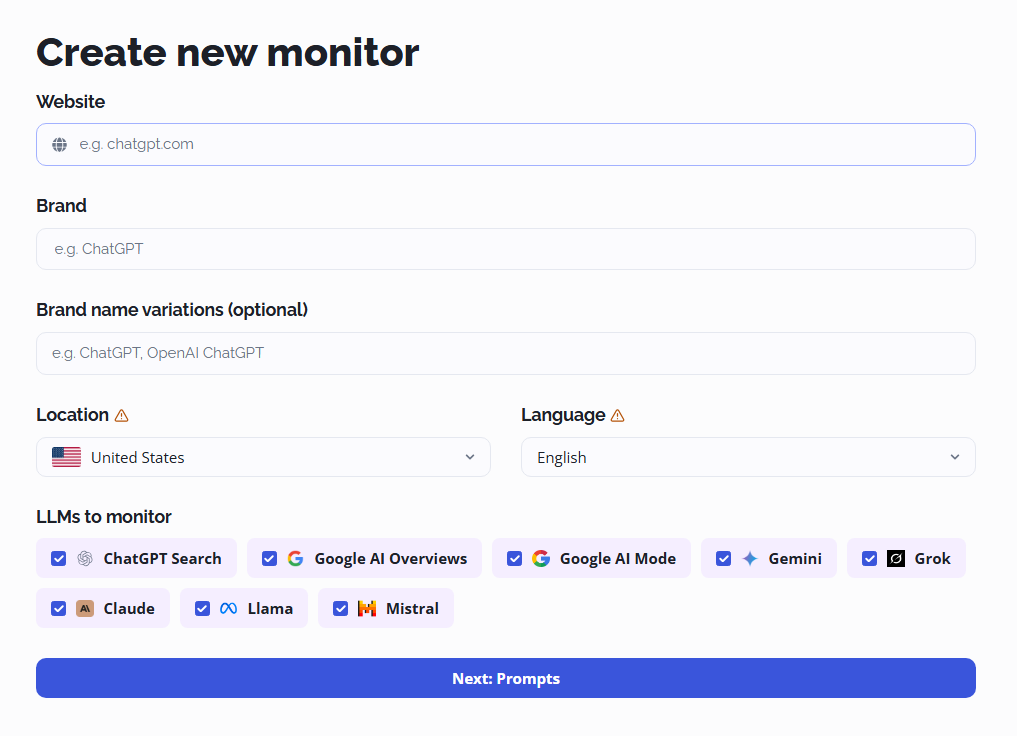
The monitoring setup consists of the following parts:
- Website – Fill in the domain you want to monitor (e.g., mangools.com).
- Brand – Add the name of your brand (e.g., Mangools).
- Brand name variations (optional) – Add variations of your brand name separated by commas.
- Location and language – Specify the target location and language where you want to monitor your brand (Note: these settings are permanent and cannot be changed later).
- LLMs to monitor – Select which AI search engines you want to monitor your brand in (up to 8 popular LLMs).
Note: When it comes to the “Brand name variations” field, make sure to add at least the most important variations of your brand.
AI models often refer to businesses using domain names, nicknames, or common shorthands (VW, Volkswagen Group, volkswagen.com, Volks Wagen, etc.) rather than just your exact primary brand name.
Therefore, it is recommended to add any key brand variations into AI Search Watcher to ensure the tool tracks all these aliases together as a single brand entity.
This will reduce false negatives so your visibility scores, rankings, and citations accurately reflect your complete AI presence.
Once you fill in all the information, click on the “Next: Prompts” button.
Add prompts
The next step is to add the most important prompts for which you want to monitor your brand presence within AI search engines.
AI Search Watcher will automatically identify and generate suggested prompts that might be relevant for your website and brand where your business is likely to be mentioned.
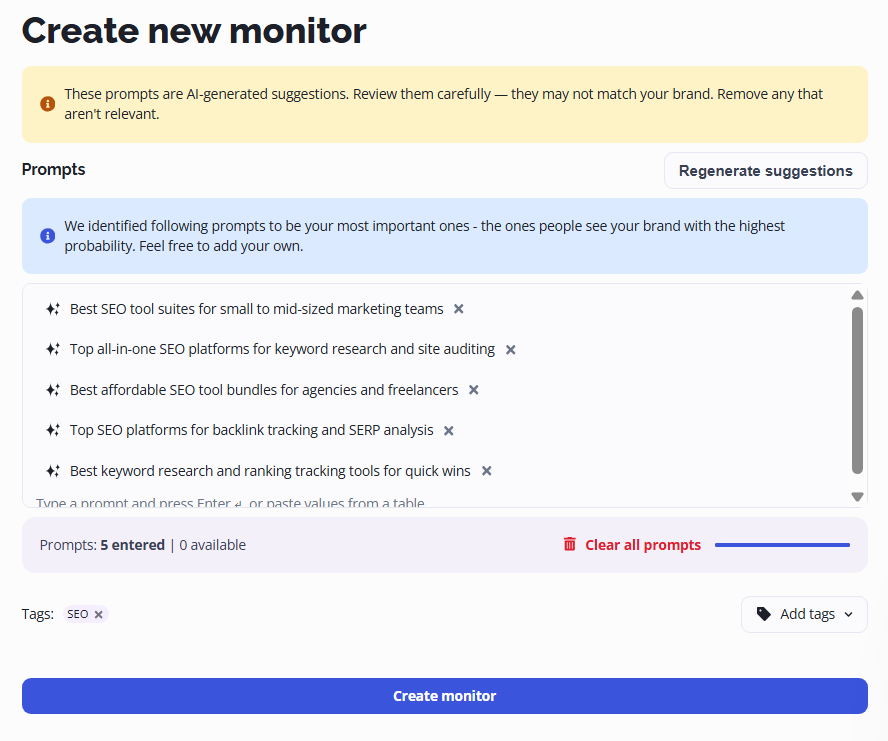
Note: These prompts are AI-generated suggestions – review them carefully, as they may not all match your brand.
You can remove any prompts/suggestions that you don’t find relevant, or simply click on the “Regenerate suggestions” button to try to find new ones that might be important for your brand.
You can also click on the “Add tags” button below the prompts to assign them under a specific tag – this will help you navigate between various types of prompts later during your analysis and monitoring.
Once you are satisfied with the prompt setup, click on “Create monitor” and you are all set.
If the automatically suggested prompts aren’t fitting your business perfectly, you can easily gather high-intent prompt ideas using your existing SEO data.
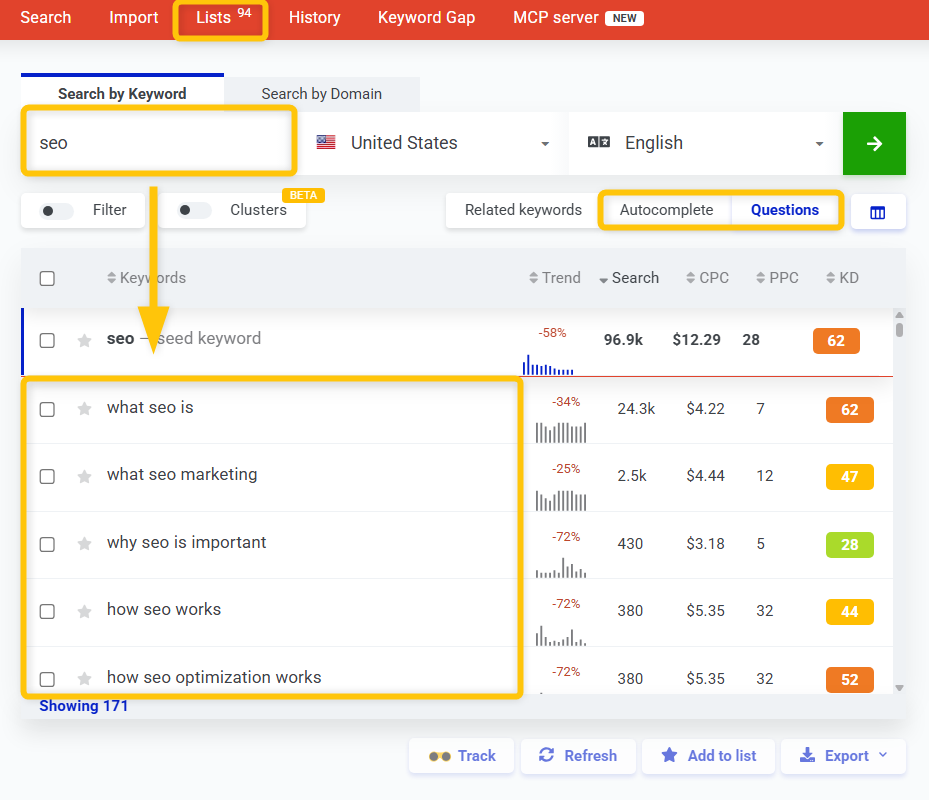
a) Find question-based queries in KWFinder
You can find various relevant prompts from your niche in our keyword research tool.
All you have to do is start with fundamental keyword research in KWFinder and check long-tail keywordsyou or question-like queries that might be useful for you to monitor in AI Search Watcher:
- Go to KWFinder and enter your main topic or niche seed keyword.
- Switch to the “Autocomplete” or “Questions” tab above the keywords table.
- Look for long-tail, conversational queries that match user intent.
- Click the “Add to list” button to save them, then copy/paste them straight into AI Search Watcher.
b) Convert your SERPWatcher keywords into LLM prompts
Alternatively, if have already performed keyword research in the past and track your search queries in SERPWatcher, you can easily copy all the target keywords you rank for directly into AI Search Watcher.
If you track only short keywords (1-2-word queries), you can simply go to your preferred LLM (e.g. ChatGPT), paste keywords from SERPWatcher into the AI model and run a prompt such as:
Convert these keywords into prompts that a regular person might ask in any AI search engine (LLM). The prompts should be conversational, intent-focused, and suitable for brand visibility monitoring: [Paste your keywords here]
After that, copy the output from your LLM and paste it directly into AI Search Watcher to start monitoring the prompts.
Brand dashboard
The AI Search Watcher dashboard consists of multiple sections where you can check and interact with all the important data about your AI performance:
- Performance summary
- Brand perception
- Performance cards
You can switch between websites you are monitoring at the top of the column on the left.
To navigate between multiple AI models, prompt types, locations, and time frames, head over to the top of the dashboard.
At the top of the dashboard, you can quickly check the overall score for all of your prompts, how many prompts you are monitoring, as well as the winning brand within your prompts.
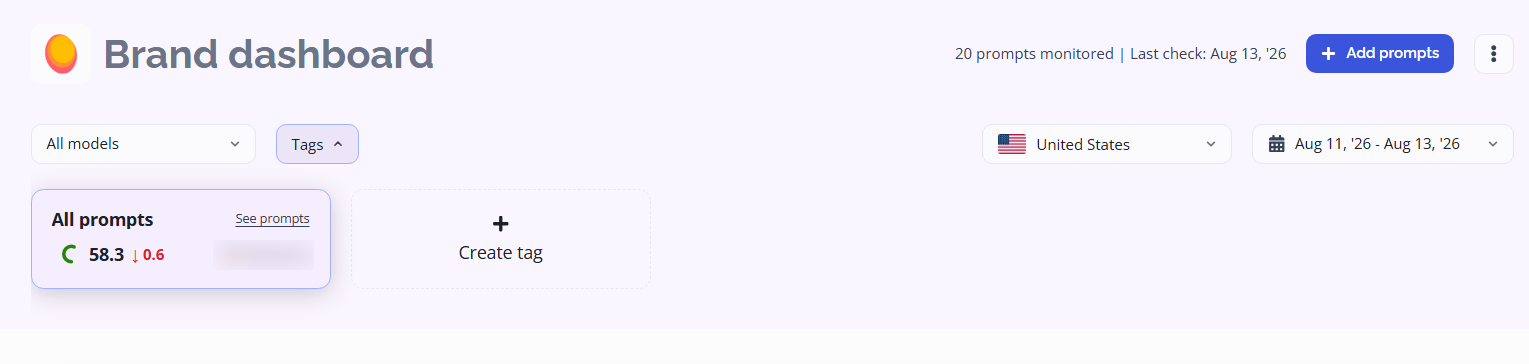
Performance summary
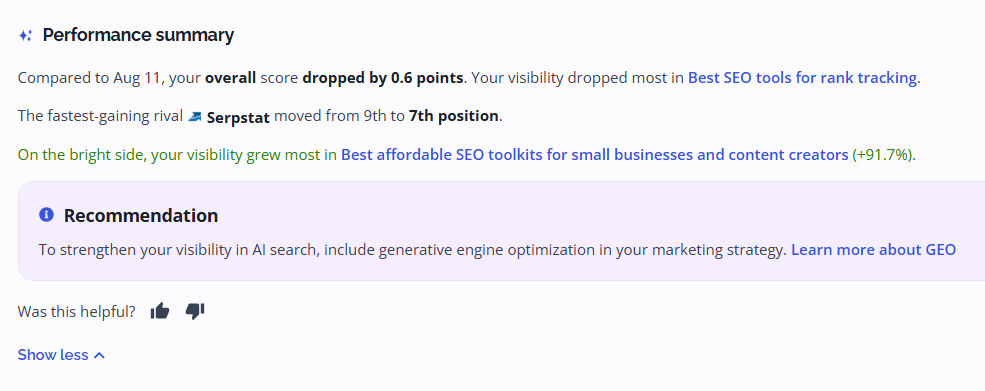
The Performance summary section shows you the overall score that your brand receives from selected LLMs, as well as the biggest increases/drops for the selected prompts.
You can also click on “Show competitor moves and recommendations” to see further recommendations on how to improve your brand’s visibility, along with more insights about your brand and your competitors.
Brand perception
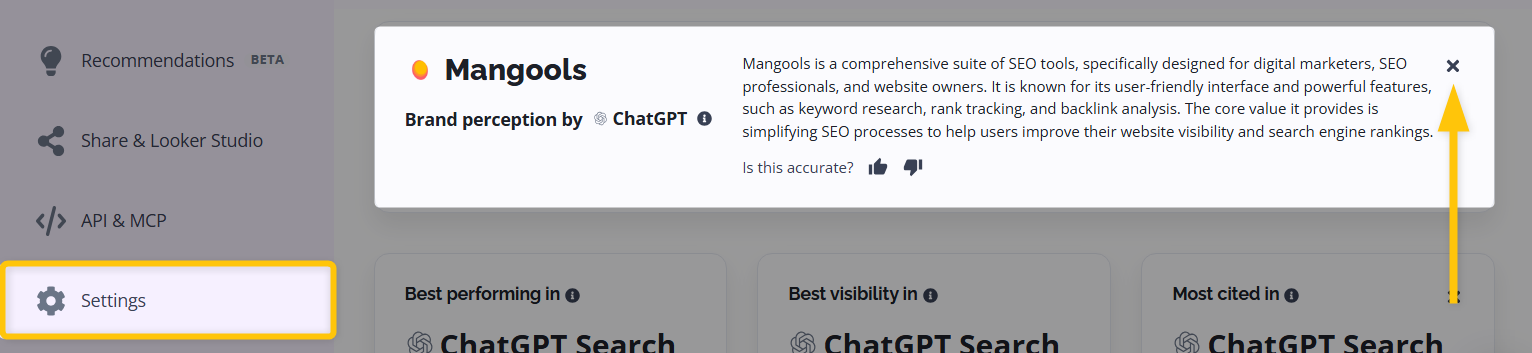
Brand perception shows you what a given AI model says about your brand when asked directly.
Although accuracy might vary slightly, it will help you understand in general how your brand and website are perceived.

Note: If an AI model generates an inaccurate description of your business, that inaccuracy is a key insight.
It indicates that the model does not yet have a clear or complete understanding of your brand entity across the web, pointing to an underlying gap in your brand’s AI search visibility that needs optimization.
If you want to hide the brand perception card or disable the feature entirely, you can either:
- Click the X icon on the top right of the card.
- Navigate to Settings → Display options and toggle off Display brand perceptions.
Performance cards
Best performing in card
The “Best performing in” card shows you the LLM with the highest average AI Search Score (from 0 to 100) for your brand across all tracked prompts, as well as the increase/decrease for those prompts within the selected time frame.

Best visibility in card
The “Best visibility in” card shows you the LLM with the highest average brand visibility for your brand across all tracked prompts on a percentage scale from 0% to 100% of responses.

Most cited in card
The “Most cited in” card shows you the LLM with the highest share of responses that cite your website on a percentage scale from 0% to 100%.

AI Search Score label
The AI Search Score is a metric that measures a brand’s visibility across selected AI models. It ranges from 0 to 100:
| Score Range | Metric Label |
|---|---|
| 0-59 | Needs improvement |
| 60-69 | Fair |
| 70-79 | Good |
| 80-89 | Excellent |
| 90-100 | Outstanding |
You can also see the top 10 brands that are performing for your prompts along with several important AI metrics:
- Rank: The overall performance rank of the brand from 1 to 10.
- Brand name: Name of the brand.
- Position: The average ranking position of a brand across the prompts where it appears in selected LLM/LLMs.
- Visibility: The average visibility of a brand across all prompts in selected LLM/LLMs.
- Score: The overall AI Search Score from 0 to 100.
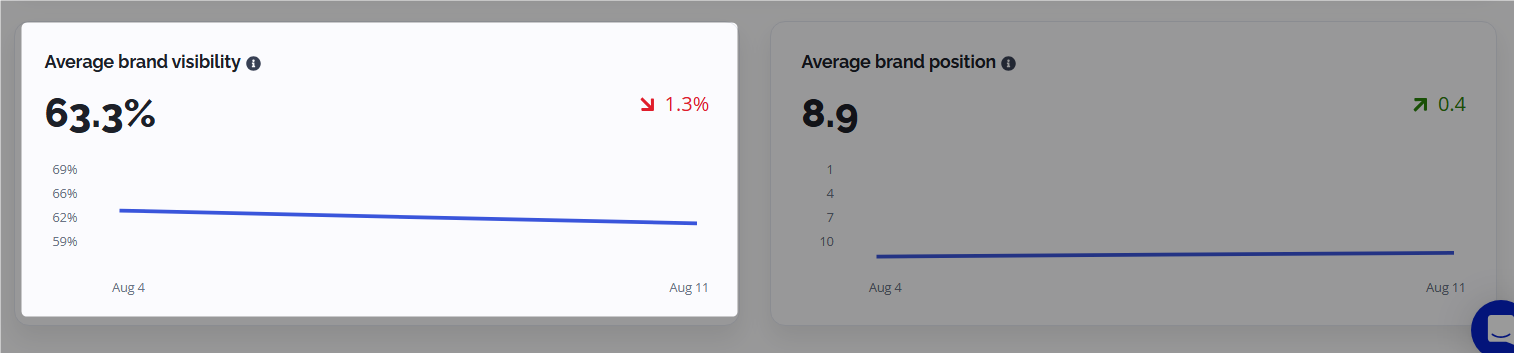
Average brand visibility
The Average brand visibility section shows you the overall percentage and increase/decrease of the average visibility of the brand across all tracked prompts in selected LLMs.
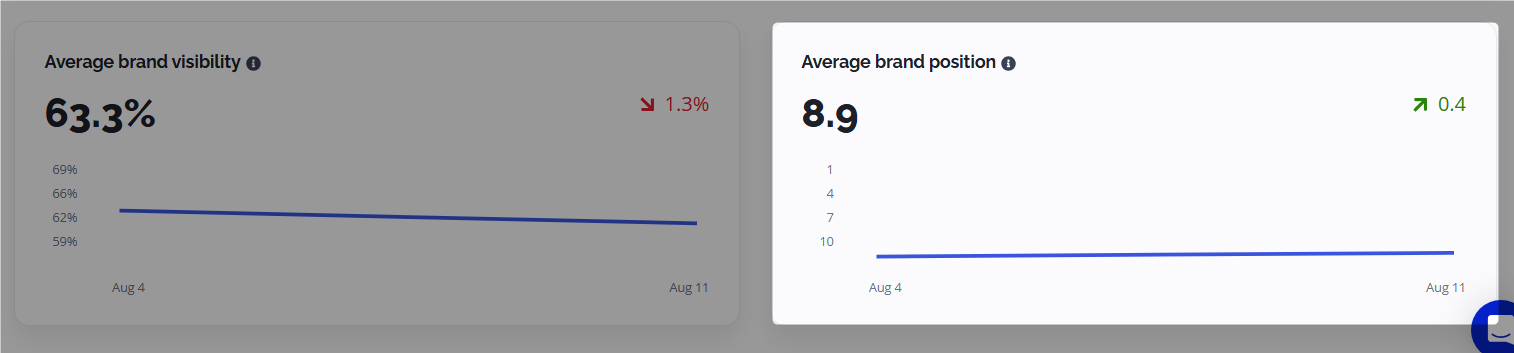
Average brand position
The average ranking position of the brand across the prompts where it appears in selected LLMs.
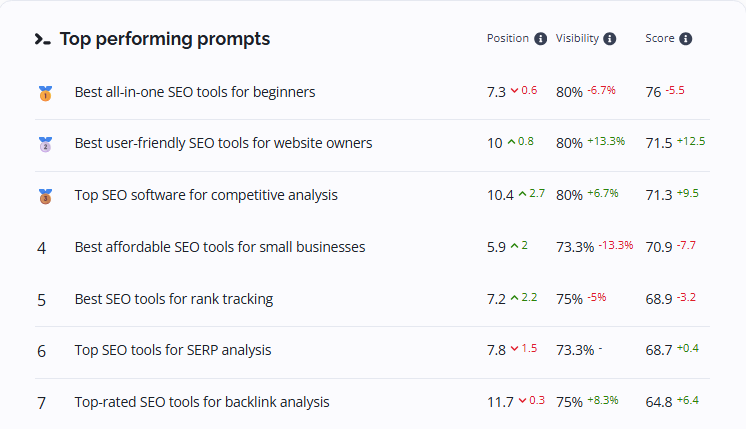
Top performing prompts
Top performing prompts shows you a list of prompts for which your brand/website ranks highest. The table consists of:
- Monitored prompt: The prompt being tracked.
- Position: The average ranking position of the brand in each prompt’s answers across selected LLMs. The “—” sign means that the brand wasn’t mentioned.
- Visibility: The percentage of times your brand appears in the results for this prompt across multiple runs in selected LLMs.
- Score: The overall AI Search Score.
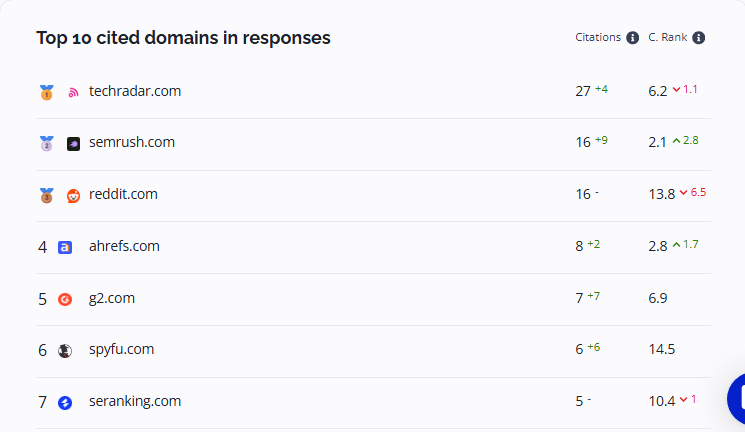
Top 10 cited domains in responses
This section shows you the best-performing websites within your selected prompts. The table consists of:
- Top cited website names: Web domains most frequently cited in response results.
- Citations: The number of citations across multiple runs of selected prompts in chosen LLMs.
- Citation rank: The average ranking position of citations across multiple runs of selected prompts in selected LLMs.
Prompts
You can navigate to the Prompts section on the left side panel of AI Search Watcher.
The panel shows you the list of all prompts for which you are monitoring your brand along with all important AI metrics, such as:
- # of citations: The number of times your website was cited across multiple prompt runs in selected LLMs.
- Citation rank: The average ranking position of the website’s citations across multiple prompt runs in selected LLMs.
- Positions: The average ranking position of the brand across the prompt runs where it appears in selected LLMs.
- Visibility: The percentage of times your brand appears in the results for this prompt across multiple prompt runs in selected LLMs.
- Score: Overall AI Search Score on a scale from 0 to 100.
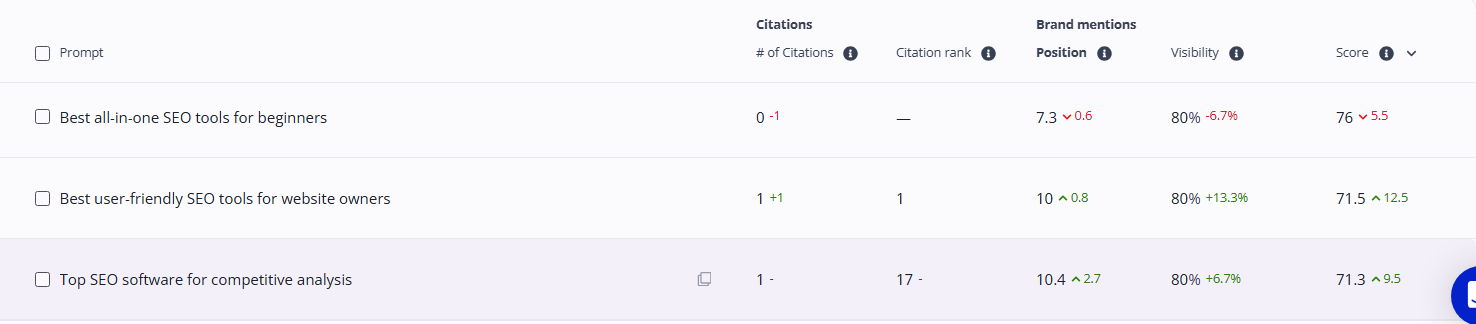
Note: When multiple LLMs are selected, a model that didn’t cite the domain counts as ranking one position below its last cited result.
Citations
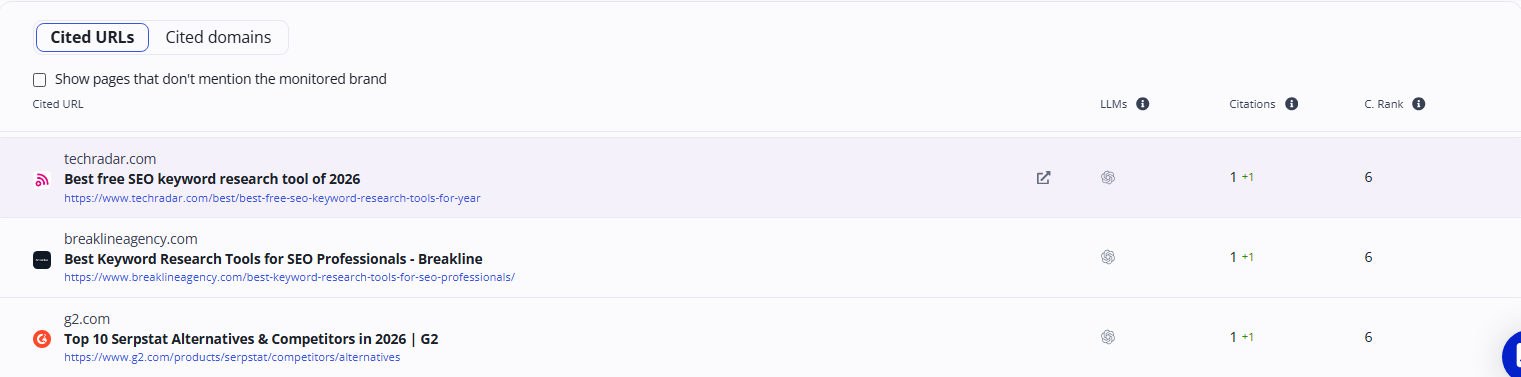
The citations section shows you the specific websites and URLs that AI models cited as sources when answering your monitored prompts.
You can switch between the Cited URLs and Cited domains tabs to see more information about each page/website.
Tables provide useful information about each cited URL/domain:
- Cited URL/domain: The webpage/website the AI models cited in their answers.
- LLMs: The AI models that cited this result across multiple runs of the selected prompts.
- Citations: The number of citations across multiple runs of selected prompts in selected LLMs.
- Citation Rank: The average ranking position of citations within the selected LLMs.
Recommendations
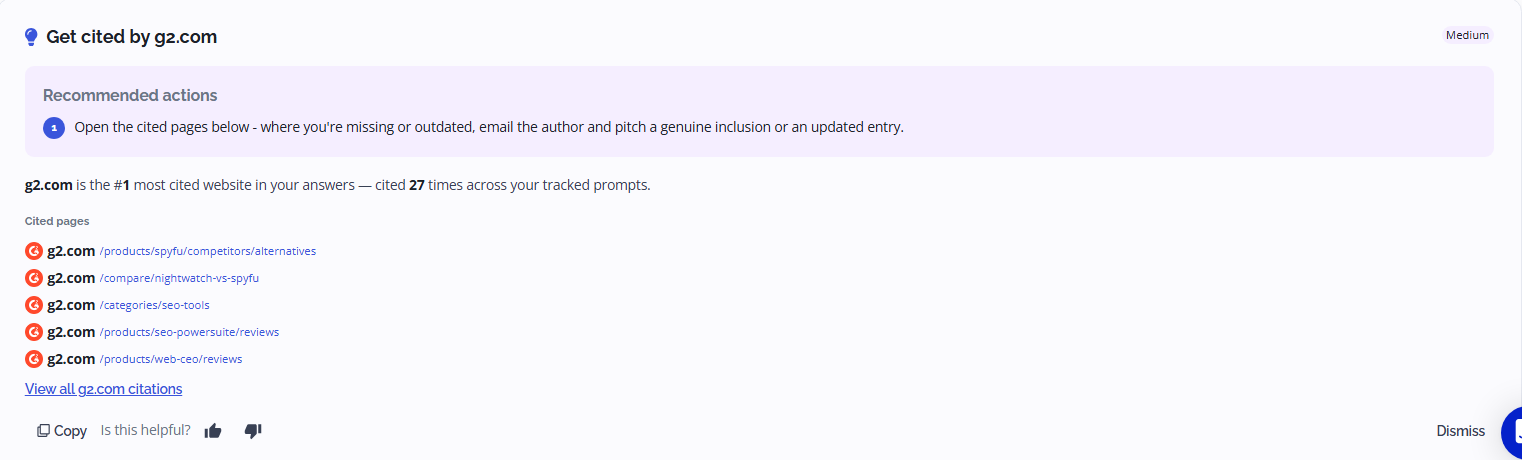
The recommendations section provides valuable information about how to boost your brand’s presence within AI search engines.
Each recommendation consists of specific actions along with URL examples and cited external pages where you should try to get your brand mentioned.
You can filter recommendations by impact (All / High / Medium), as well as copy or dismiss recommendations based on what you find valuable.
Share & Looker Studio
Share your data by link
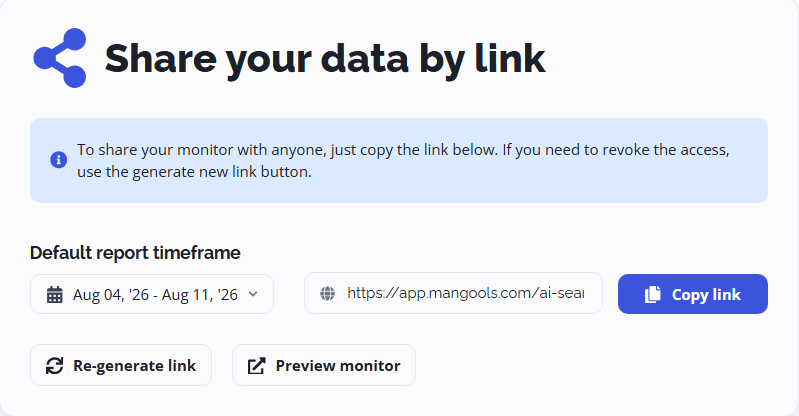
AI Search Watcher reports can be shared with anyone who needs to view them.
To share your monitor with anyone, just copy the link in the “Share your data by link” tab.
If you need to revoke access, use the “Generate new link” button. You can also select the report timeframe as well as preview how the report will actually look when shared with someone.
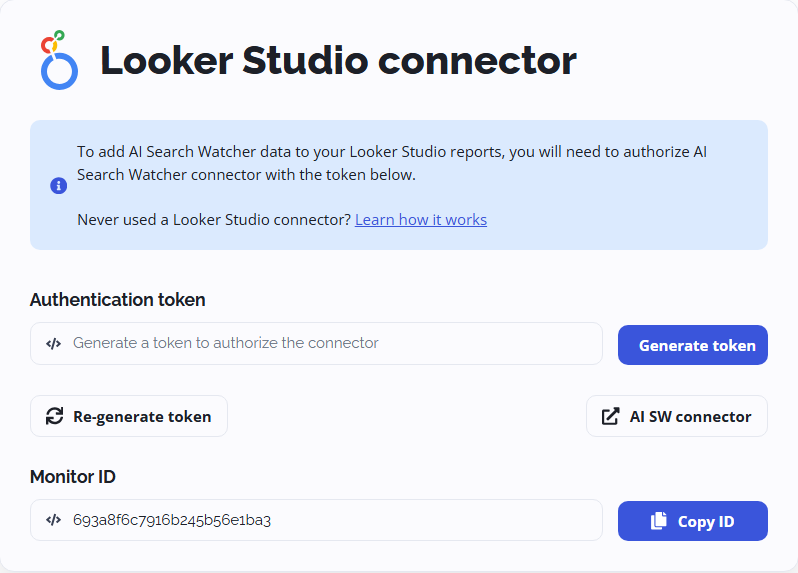
Looker Studio connector
For further, more detailed, and flexible reporting, you can use our Looker Studio connector to integrate AI Search Watcher data into Looker Studio.
To add AI Search Watcher data to your Looker Studio reports, you will need to authorize the AI Search Watcher connector with your token.
For further information, check out our Integration Guide.
API & MCP
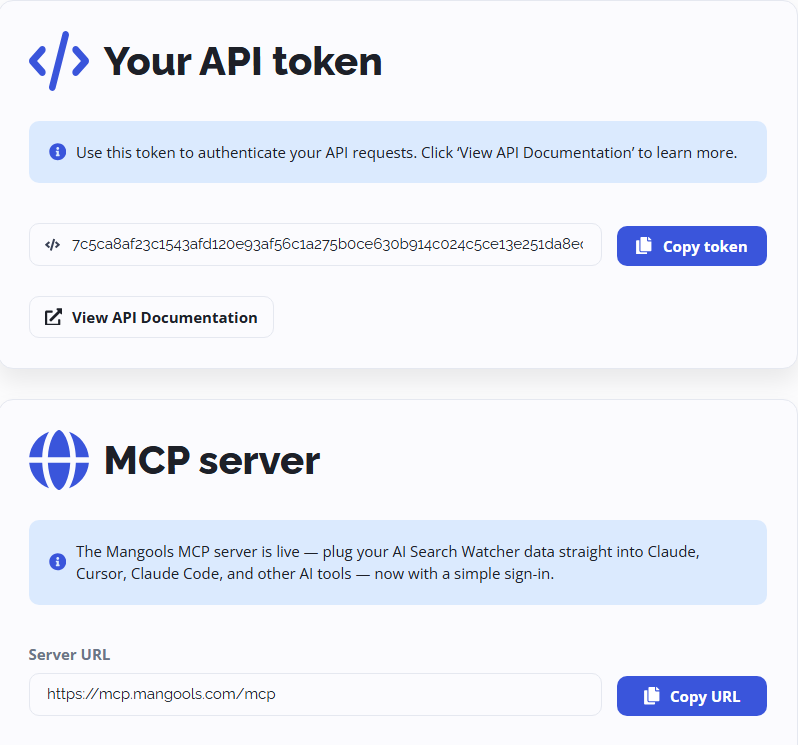
The API & MCP section allows you to use our Mangools API for your custom needs. You can use the token in this tab to authenticate your API requests.
For more information about the AI Search Watcher API, check out our API Documentation.
You can also use the Mangools MCP server as an integration bridge using the Model Context Protocol (MCP) that exposes the Mangools SEO API as a set of tools for AI assistants like Claude Desktop or Claude Code.
For more information, check out our MCP Setup Guide.
Settings and email reports
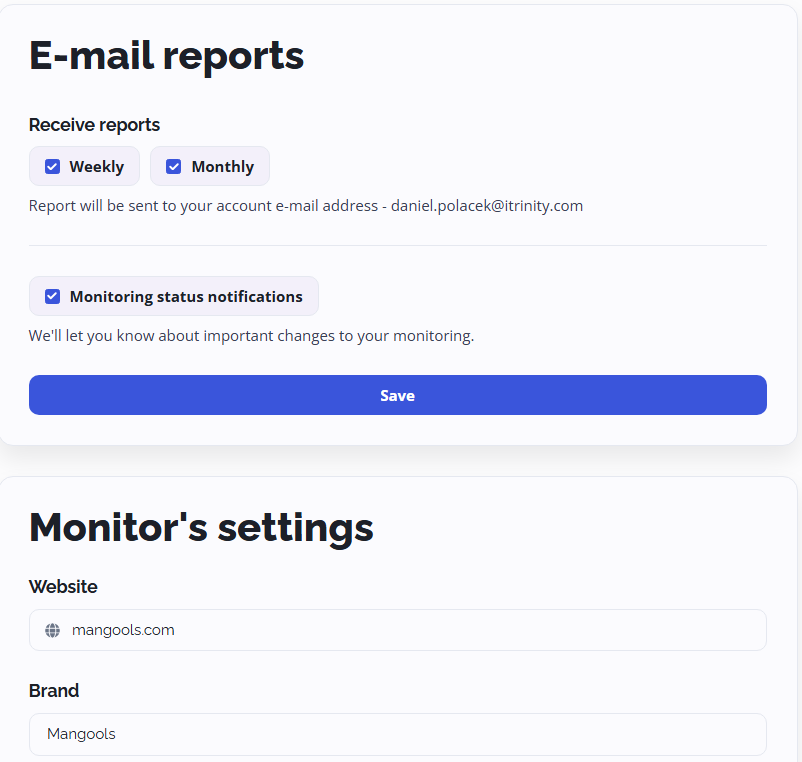
The settings tab in the panel on the left will help you set up regular reports about your AI performance within AI Search Watcher.
You can receive weekly or monthly reports delivered to your account email address. AI Search Watcher will also notify you about any important changes that might happen during monitoring.
In the Monitor Settings tab, you can adjust information about your website/brand in case you made a mistake during setup (except for the location and language settings, which cannot be changed after setup).
At the bottom of the settings menu, you can also adjust the visual layout of your dashboard to toggle individual parts of the AI reports on or off.